
Layouts and Sections in Blade (@extends, @yield, @section)
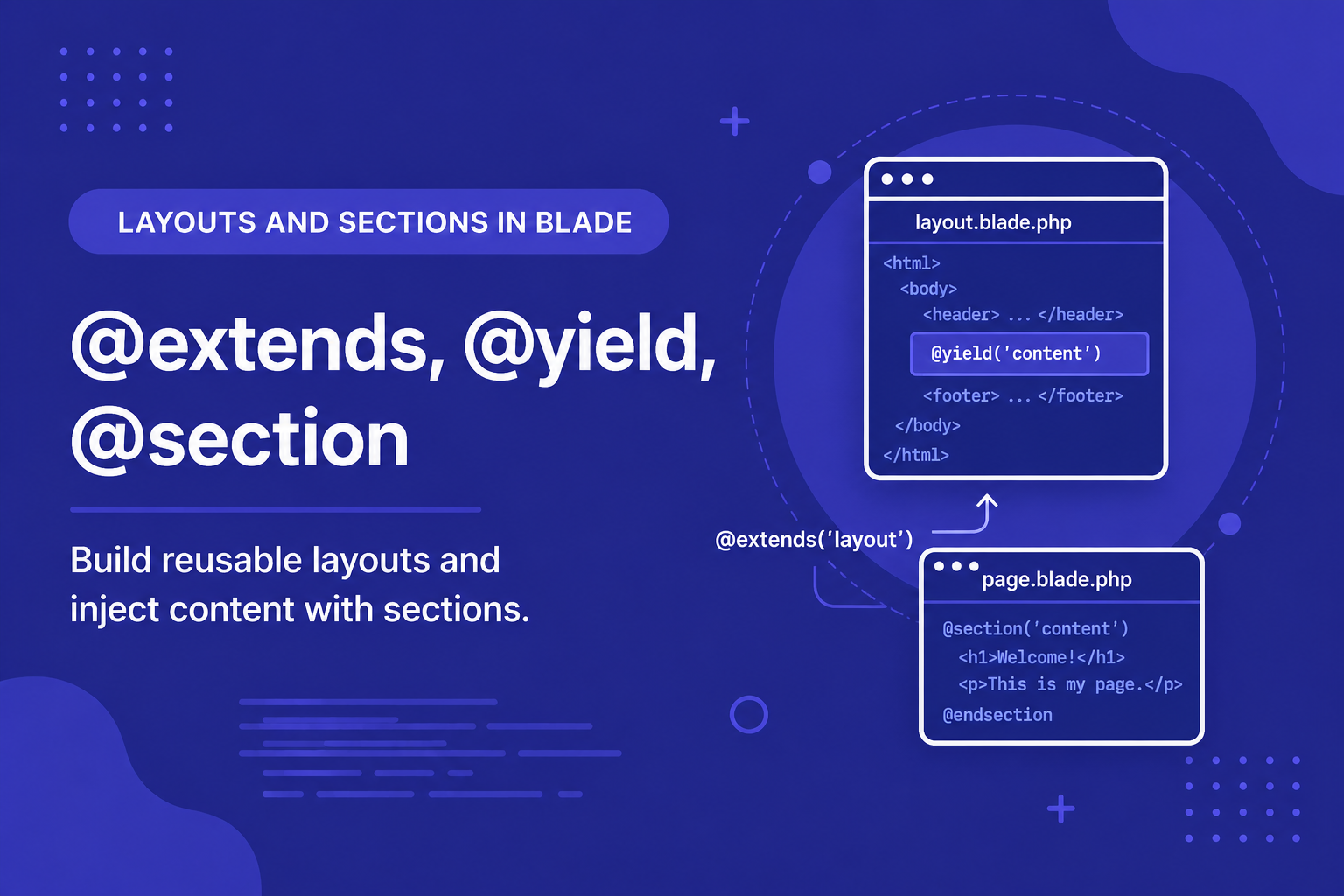
In this article, we'll walk through how to build a basic layout, extend it from individual pages, and manage multiple content sections within the same layout.
262 views
Introduction
Nearly every page on a website shares common elements — a header, a navigation bar, a footer, and often a consistent overall structure. Without a way to reuse this shared HTML, you'd end up copying and pasting the same header and footer code into every single Blade file, which quickly becomes a maintenance nightmare. Change your navigation once, and suddenly you need to update it in twenty different files.
Blade solves this with layouts, a system built around three directives working together: @extends, @yield, and @section. This lets you define your site's shared structure once, in a single master layout file, while individual pages only need to provide the content that's unique to them.
In this article, we'll walk through how to build a basic layout, extend it from individual pages, and manage multiple content sections within the same layout.
Creating a Master Layout
A layout is just a regular Blade file that defines the overall page structure, with placeholders for content that will change from page to page. By convention, layouts are often stored in resources/views/layouts/.
Here's a simple example layout, saved as resources/views/layouts/app.blade.php:
html
<!DOCTYPE html>
<html>
<head>
<title>@yield('title', 'My Website')</title>
</head>
<body>
<header>
<h1>My Website</h1>
<nav>
<a href="/">Home</a>
<a href="/posts">Posts</a>
</nav>
</header>
<main>
@yield('content')
</main>
<footer>
<p>© {{ date('Y') }} My Website</p>
</footer>
</body>
</html>The @yield('content') directive acts as a placeholder — it marks the spot where each individual page's unique content will be inserted. The @yield('title', 'My Website') example also shows an optional default value, used when a page doesn't define its own title.
Extending the Layout from a Page
Now, instead of writing a full HTML document for every page, individual views simply "extend" the layout and fill in the sections it defines.
Here's an example page, resources/views/posts/index.blade.php:
html
@extends('layouts.app')

@section('title', 'All Posts')

@section('content')
    <h2>All Posts</h2>
    <ul>
        @foreach ($posts as $post)
            <li>{{ $post->title }}</li>
        @endforeach
    </ul>
@endsection
When this view is rendered, Blade takes the layouts.app file, inserts 'All Posts' wherever @yield('title', ...) appears, and inserts the <h2> and <ul> content wherever @yield('content') appears — producing one complete, combined HTML page.
Understanding How the Three Directives Work Together
@extends('layouts.app')— Tells Blade this view is built on top of thelayouts.applayout file. This must be the very first line in the child view.@yield('content')— Used inside the layout file, marking where a section's content should be inserted.@section('content') ... @endsection— Used inside the child view, defining the actual content that fills a particular@yieldplaceholder.
Short, Inline Sections
For very short sections (like a page title), you can define them inline without @endsection, as shown earlier:
html
@section('title', 'All Posts')This is just a shorthand for:
html
@section('title')
    All Posts
@endsection
Using Multiple Sections
A layout can define as many @yield placeholders as needed, and child views can fill in as many or as few as they need.
html
<!-- layouts/app.blade.php -->
<body>
    <header>
        @yield('header')
    </header>

    <main>
        @yield('content')
    </main>

    <aside>
        @yield('sidebar', '<p>Default sidebar content</p>')
    </aside>
</body>
html
<!-- posts/index.blade.php -->
@extends('layouts.app')

@section('header')
    <h1>Post Listing</h1>
@endsection

@section('content')
    <p>Here are all your posts.</p>
@endsection
In this example, since the child view doesn't define a sidebar section, the default fallback content passed to @yield('sidebar', ...) is displayed instead.
Appending to a Section with @parent
Occasionally, you'll want to add content to a section rather than fully replacing it, especially useful in more advanced layout hierarchies. The @parent directive lets you include the parent layout's original section content alongside your own:
html
@section('sidebar')
    @parent
    <p>Additional sidebar content specific to this page.</p>
@endsection
Tips for Structuring Layouts
Keep one main layout for most of your site (like
layouts.app), and only create additional layouts for genuinely different page structures, such as an authentication layout without a navigation bar.Always make
@extendsthe first line in a child view — Blade requires this to properly detect the layout relationship.Use default values in
@yieldfor optional sections, reducing the need for repetitive fallback logic in every child view.Store layouts inside
resources/views/layouts/to keep them clearly separated from regular page views.Avoid overly complex layouts with too many
@yieldsections — if a layout starts feeling cluttered, it might be a sign you need Blade components instead (which we'll cover in the next article).
FAQ About Blade Layouts
1. What happens if a child view doesn't define a section that the layout expects? If the @yield call includes a default value, that default is shown instead. If no default is provided, the section simply renders as empty.
2. Can I use @extends more than once in the same file? No, a view can only extend one layout at a time. If you need shared content across multiple layouts, consider using Blade components or includes instead.
3. What's the difference between @yield and @section used inside a layout itself? @yield is a simple placeholder that just outputs whatever content is provided. @section combined with @show can also be used directly in a layout to provide default content that child views can override — a more advanced pattern used less frequently by beginners.
4. Can layouts be nested, like a layout extending another layout? Yes, this is possible and sometimes used for more complex applications with shared sub-layouts (such as a general site layout and a more specific admin layout that extends it), though it's not necessary for most simple applications.
5. Is there a limit to how many sections a layout can have? No, you can define as many @yield placeholders as your layout needs, though keeping the number reasonable helps maintain readability.
6. Should every single page in my application use a layout? Not necessarily — very simple standalone pages (like an email template or a printable invoice) might not need to extend a shared layout at all, but the vast majority of regular website pages benefit from this pattern.
Conclusion
Layouts and sections are one of the most immediately useful features Blade offers, letting you define your site's shared structure once and reuse it consistently across every page. This keeps your codebase DRY (Don't Repeat Yourself) and makes site-wide changes, like updating your navigation bar, effortless.
In the next article, we'll go a step further with Blade components and slots — a more modern, flexible approach to reusable template pieces that goes beyond what basic layouts alone can offer.
Found this helpful? Share it!