
Understanding the Laravel Folder Structure
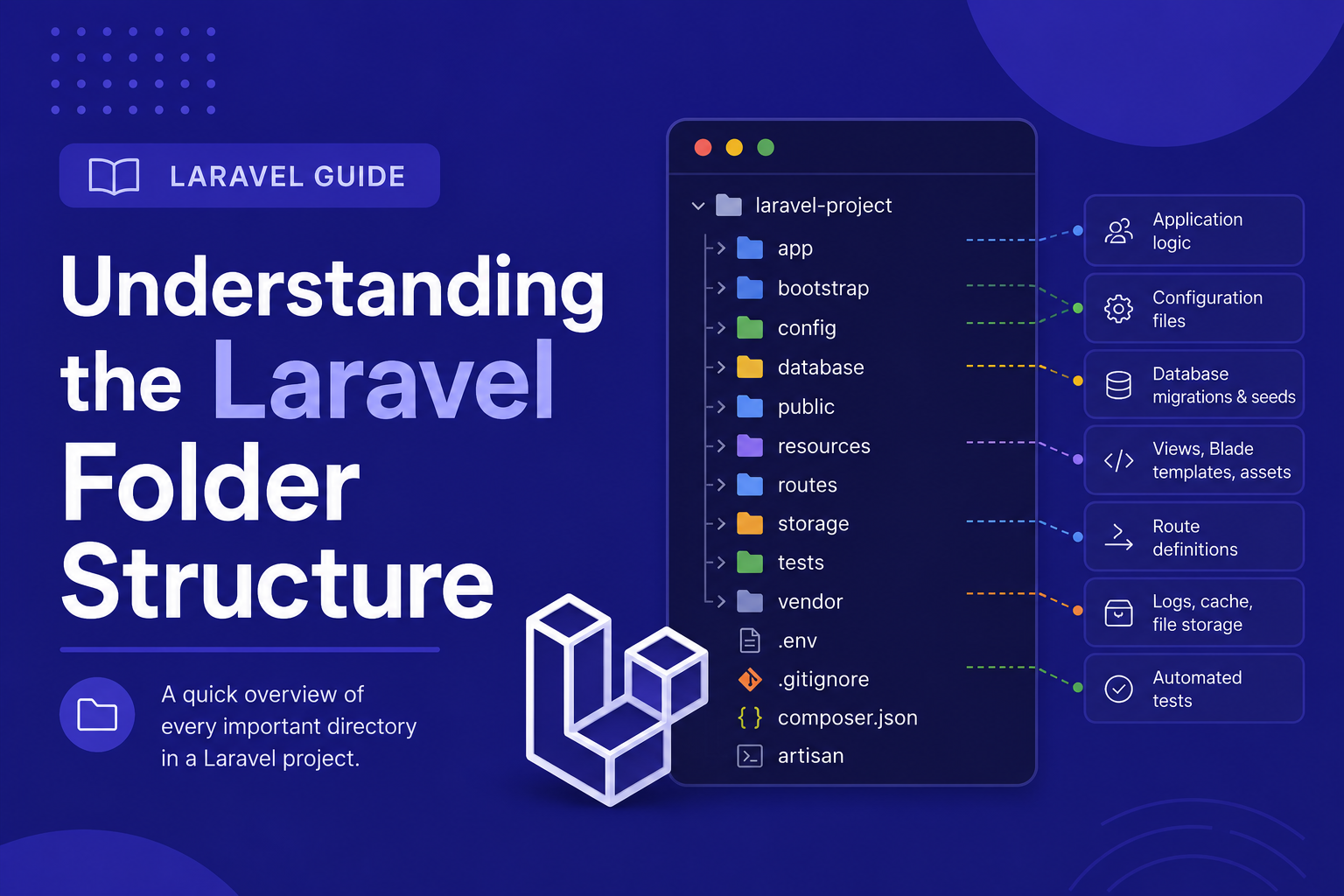
In this article, we'll walk through Laravel's default folder structure, explain what each major directory does, and highlight the ones you'll be working with the most as a beginner.
408 views
Introduction
When you first open a freshly installed Laravel project, the number of folders and files can feel a little overwhelming — especially if you're used to writing plain PHP where everything lives in just one or two files. But there's a good reason for this organization: Laravel's folder structure is designed to keep your code clean, logically separated, and easy to maintain as your application grows.
Once you understand what each folder is responsible for, navigating a Laravel project becomes second nature. You'll know exactly where to look when you need to add a new page, create a database table, or write business logic, instead of guessing or searching randomly through the codebase.
In this article, we'll walk through Laravel's default folder structure, explain what each major directory does, and highlight the ones you'll be working with the most as a beginner.
The Root Directory Overview
When you open your Laravel project folder, you'll see several top-level directories and files. Here's a breakdown of the most important ones:
my-project/
├── app/
├── bootstrap/
├── config/
├── database/
├── public/
├── resources/
├── routes/
├── storage/
├── tests/
├── vendor/
├── .env
├── artisan
└── composer.json
Let's go through the key folders one by one.
app/ — Your Application's Core Logic
This is where you'll spend most of your time as a Laravel developer. It contains your application's actual business logic, including:
app/Models/— Eloquent models that represent your database tables.app/Http/Controllers/— Controllers that handle incoming requests and return responses.app/Http/Middleware/— Middleware that filters HTTP requests entering your application (e.g., authentication checks).app/Providers/— Service providers responsible for bootstrapping various parts of your application.
As your project grows, you might also see folders here like app/Services/ or app/Repositories/, which developers often create themselves to keep controllers slim and organized.
routes/ — Defining Your Application's URLs
This folder defines how your application responds to different URLs. The most commonly used files are:
routes/web.php— Routes for your website's pages (returns HTML views).routes/api.php— Routes intended for API endpoints (returns JSON).
For example, a simple route in web.php might look like this:
php
Route::get('/', function () {
    return view('welcome');
});
resources/ — Views and Frontend Assets
This folder holds everything related to your application's presentation layer:
resources/views/— Blade template files (.blade.php) used to generate HTML.resources/css/andresources/js/— Your raw, uncompiled CSS and JavaScript files, which get processed by Vite.
database/ — Migrations, Seeders, and Factories
This is where your database structure is defined in code rather than manually created through a database tool:
database/migrations/— Version-controlled files that define your database tables and their columns.database/seeders/— Scripts to populate your database with sample or default data.database/factories/— Used to generate fake data for testing purposes.
public/ — The Web Server's Entry Point
This folder is the only one directly accessible from a browser. It contains the index.php file, which serves as the single entry point for all requests into your Laravel application, along with compiled assets like CSS, JavaScript, and images.
config/ — Application Configuration Files
Each file in this folder controls settings for a specific part of Laravel, such as config/database.php for database connections or config/mail.php for email settings. Most of these values are pulled from your .env file behind the scenes.
storage/ — Logs, Cache, and Uploaded Files
This folder stores things your application generates while running, including log files, cached views, session data, and files uploaded by users (when using local storage).
vendor/ — Composer Dependencies
This folder contains all the third-party packages installed via Composer, including Laravel's own core framework files. You should never edit anything inside this folder directly, since it can be regenerated anytime with composer install.
Other Notable Files
.env— Stores environment-specific configuration like database credentials and API keys (covered in more detail in the next article).artisan— The command-line script used to run Artisan commands likephp artisan serveorphp artisan migrate.composer.json— Lists your project's PHP dependencies and metadata.
Tips for Navigating the Folder Structure
Start with
routes/web.phpwhenever you want to understand what pages an application has.Check
app/Http/Controllers/to trace the logic behind a specific route.Look in
resources/views/to find the HTML/Blade template tied to a controller's response.Never edit files inside
vendor/— changes there will be lost when dependencies are updated.Use
database/migrations/as your source of truth for understanding the database schema, rather than checking the database directly.Get comfortable with
storage/logs/laravel.log— it's often the first place to check when debugging errors.
FAQ About Laravel's Folder Structure
1. Do I need to memorize every folder in a Laravel project? No. As a beginner, focus on app/, routes/, resources/views/, and database/migrations/ first — these are the folders you'll use most often early on.
2. Can I create my own folders inside app/? Yes. Many developers add folders like app/Services/ or app/Repositories/ to better organize business logic as their project grows. Laravel doesn't restrict this.
3. Why can't I access files directly from the app/ folder in my browser? Only the public/ folder is exposed to the web server. This is a security measure that keeps your application's core logic inaccessible from direct URL requests.
4. What happens if I accidentally delete the vendor/ folder? Nothing critical is lost — simply run composer install again in your project folder, and Composer will re-download everything based on your composer.json and composer.lock files.
5. Where should I put uploaded user files, like profile pictures? Typically inside storage/app/public/, which can then be linked to the public/storage/ folder using the php artisan storage:link command.
6. Is the folder structure the same across all Laravel versions? Mostly, yes, though newer versions (like Laravel 11) have simplified some folders, such as removing several files from app/Http/ that used to exist by default in earlier versions.
Conclusion
Laravel's folder structure might look like a lot at first glance, but each directory has a clear, focused purpose that ultimately makes your codebase easier to navigate and maintain. Once you get comfortable with where things live, you'll find yourself moving through a Laravel project with confidence.
In the next article, we'll take a closer look at the .env file and Laravel's configuration files, and explain how they work together to manage settings across different environments.
Found this helpful? Share it!