
Migrations: Creating and Managing Table Structures
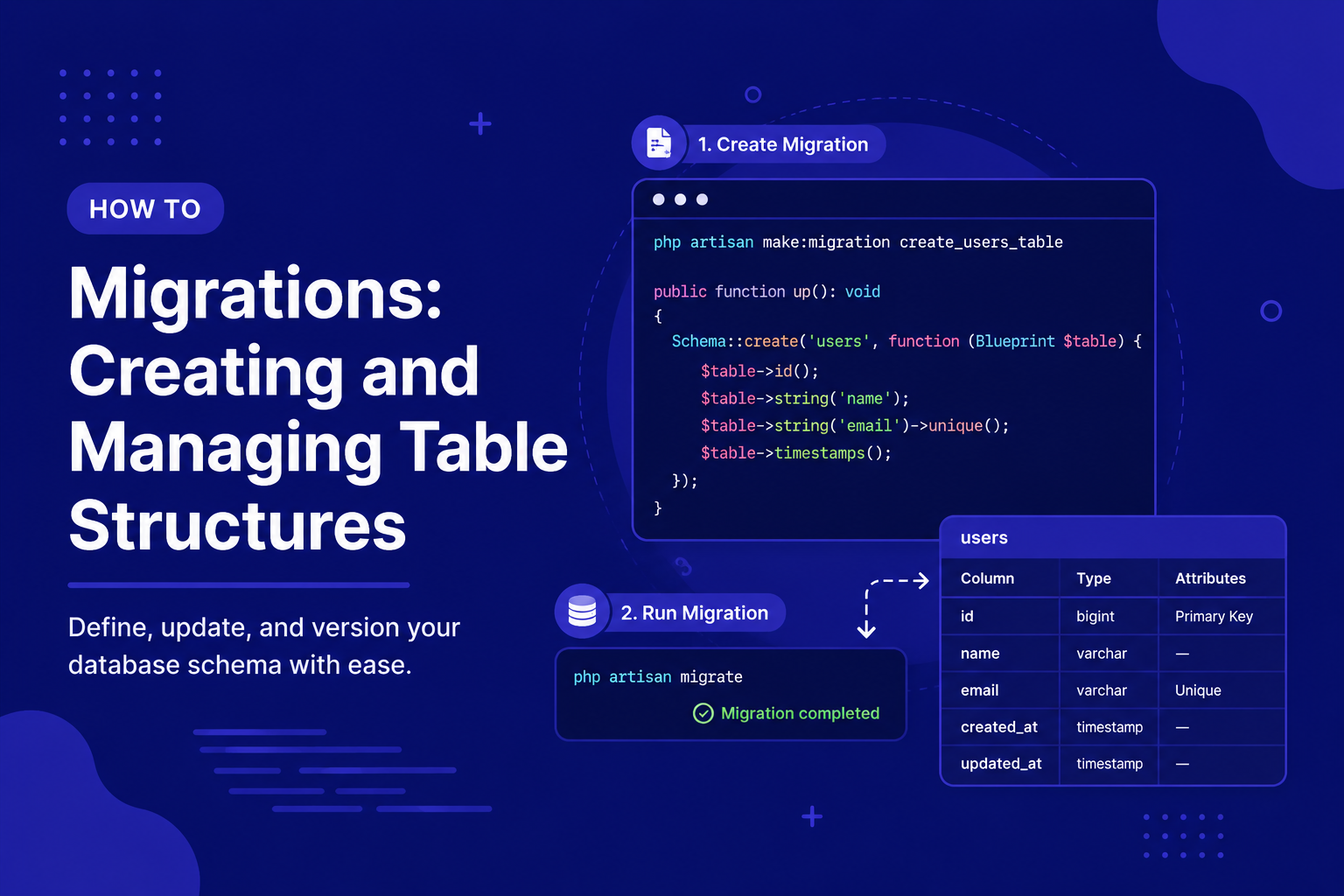
In this article, we'll cover how migrations work, how to create and run them, and how to modify existing tables as your application evolves.
283 views
Introduction
With your MySQL connection configured, the next question is: how do you actually create the tables your application needs? You could open a database GUI tool and manually click through creating tables and columns, but that approach doesn't scale well — especially when working in a team, or when you need to deploy the same database structure across multiple environments.
Laravel solves this with migrations: version-controlled PHP files that define your database structure directly in code. Think of migrations as Git for your database schema — every change is tracked, shareable, and can be applied or reversed in a consistent, repeatable way, without anyone needing direct database access.
In this article, we'll cover how migrations work, how to create and run them, and how to modify existing tables as your application evolves.
Why Migrations Matter
Without migrations, sharing database changes with a team (or deploying to a new server) means manually communicating "add this column" or "create this table" instructions, which is slow and error-prone. With migrations, that entire process becomes automatic: anyone pulls the latest code, runs php artisan migrate, and their database structure matches everyone else's exactly.
Migrations also make it easy to reverse changes if something goes wrong, since each migration typically defines both how to apply a change and how to undo it.
Creating a Migration
Migrations are generated using Artisan, and by convention, are named descriptively based on what they do:
php
php artisan make:migration create_posts_tableThis creates a new file inside database/migrations/, prefixed with a timestamp (e.g., 2026_08_06_123456_create_posts_table.php), ensuring migrations always run in the correct order.
Anatomy of a Migration File
php
<?php

use Illuminate\Database\Migrations\Migration;
use Illuminate\Database\Schema\Blueprint;
use Illuminate\Support\Facades\Schema;

return new class extends Migration
{
    public function up(): void
    {
        Schema::create('posts', function (Blueprint $table) {
            $table->id();
            $table->string('title');
            $table->text('body');
            $table->timestamps();
        });
    }

    public function down(): void
    {
        Schema::dropIfExists('posts');
    }
};up()defines what happens when the migration runs — in this case, creating thepoststable.down()defines how to reverse it — dropping the table if the migration is rolled back.
Common Column Types
Laravel's schema builder provides a readable, expressive syntax for defining columns:
php
$table->id();                          // Auto-incrementing primary key
$table->string('title');               // VARCHAR column
$table->text('body');                  // TEXT column
$table->integer('views')->default(0);  // INTEGER with a default value
$table->boolean('is_published')->default(false);
$table->decimal('price', 8, 2);        // Decimal with precision and scale
$table->date('published_at');
$table->timestamps();                  // Adds created_at and updated_at columns
Adding Foreign Keys
Since many applications involve related tables (like posts belonging to users), migrations also support defining foreign key relationships:
php
Schema::create('posts', function (Blueprint $table) {
    $table->id();
    $table->foreignId('user_id')->constrained()->onDelete('cascade');
    $table->string('title');
    $table->text('body');
    $table->timestamps();
});
foreignId('user_id')->constrained() automatically assumes a relationship to the users table's id column, while onDelete('cascade') means related posts get deleted automatically if their associated user is deleted.
Running Migrations
Once your migration file is ready, apply it to your database with:
php
php artisan migrateLaravel keeps track of which migrations have already run in a special migrations table, so running this command again only applies new, pending migrations — it won't try to recreate tables that already exist.
Rolling Back Migrations
If you need to undo the most recent batch of migrations:
php
php artisan migrate:rollbackTo completely reset your database and re-run every migration from scratch:
php
php artisan migrate:freshBoth commands rely on the down() method being correctly defined, which is why it's important to keep it in sync with whatever the up() method does.
Modifying Existing Tables
As your application evolves, you'll often need to add, modify, or remove columns from existing tables. Rather than editing the original migration file (which has already run and shouldn't be changed), you create a new migration specifically for the change:
php
php artisan make:migration add_status_to_posts_table --table=postsphp
public function up(): void
{
    Schema::table('posts', function (Blueprint $table) {
        $table->string('status')->default('draft');
    });
}

public function down(): void
{
    Schema::table('posts', function (Blueprint $table) {
        $table->dropColumn('status');
    });
}
Notice the use of Schema::table() (for modifying an existing table) instead of Schema::create() (for creating a new one).
Tips for Working with Migrations
Never edit a migration that's already run in production — create a new migration for any further changes instead, to keep your migration history accurate and consistent across environments.
Always write a correct
down()method, even though it's tempting to leave it empty, since rollbacks become unreliable otherwise.Use descriptive migration names, like
add_status_to_posts_table, so their purpose is clear at a glance in thedatabase/migrations/folder.Run
migrate:freshfreely during local development, but never in production, since it deletes all existing data.Keep related schema changes in one migration when they logically belong together (like creating a table with all its initial columns), rather than splitting them unnecessarily.
FAQ About Migrations
1. What happens if I run php artisan migrate twice in a row? Nothing changes the second time — Laravel checks its internal migrations table and only runs migrations that haven't been applied yet, skipping ones that already have.
2. Can I edit a migration file after it has already run? Technically yes, but doing so won't have any effect unless you roll it back and re-run it, since Laravel already considers it "applied." This can also cause inconsistencies between environments where the migration ran at different times. It's safer to create a new migration for further changes instead.
3. What's the difference between migrate:rollback and migrate:fresh? migrate:rollback only undoes the most recent batch of migrations, while migrate:fresh drops every table in the database entirely and re-runs all migrations from the very beginning.
4. Do migrations work the same way across MySQL, PostgreSQL, and other databases? Mostly, yes. Laravel's schema builder abstracts most differences between database systems, though a few advanced, database-specific features may behave slightly differently depending on which database you're using.
5. Should I commit migration files to version control? Yes, always. Migrations are meant to be shared across your team and deployed to other environments, so they belong in your Git repository just like any other application code.
6. What happens if two team members create migrations at the same time? Since migration filenames are timestamped, both will typically apply without conflict, running in the order their timestamps indicate, as long as they don't modify the exact same table structure in conflicting ways.
Conclusion
Migrations turn your database schema into something version-controlled, shareable, and repeatable, removing the need for manual database setup across different environments. Once you're comfortable creating and running migrations, managing your application's database structure becomes a natural part of your regular development workflow.
In the next article, we'll look at seeders and factories, which let you populate your freshly migrated database with realistic sample data for development and testing.
Found this helpful? Share it!